
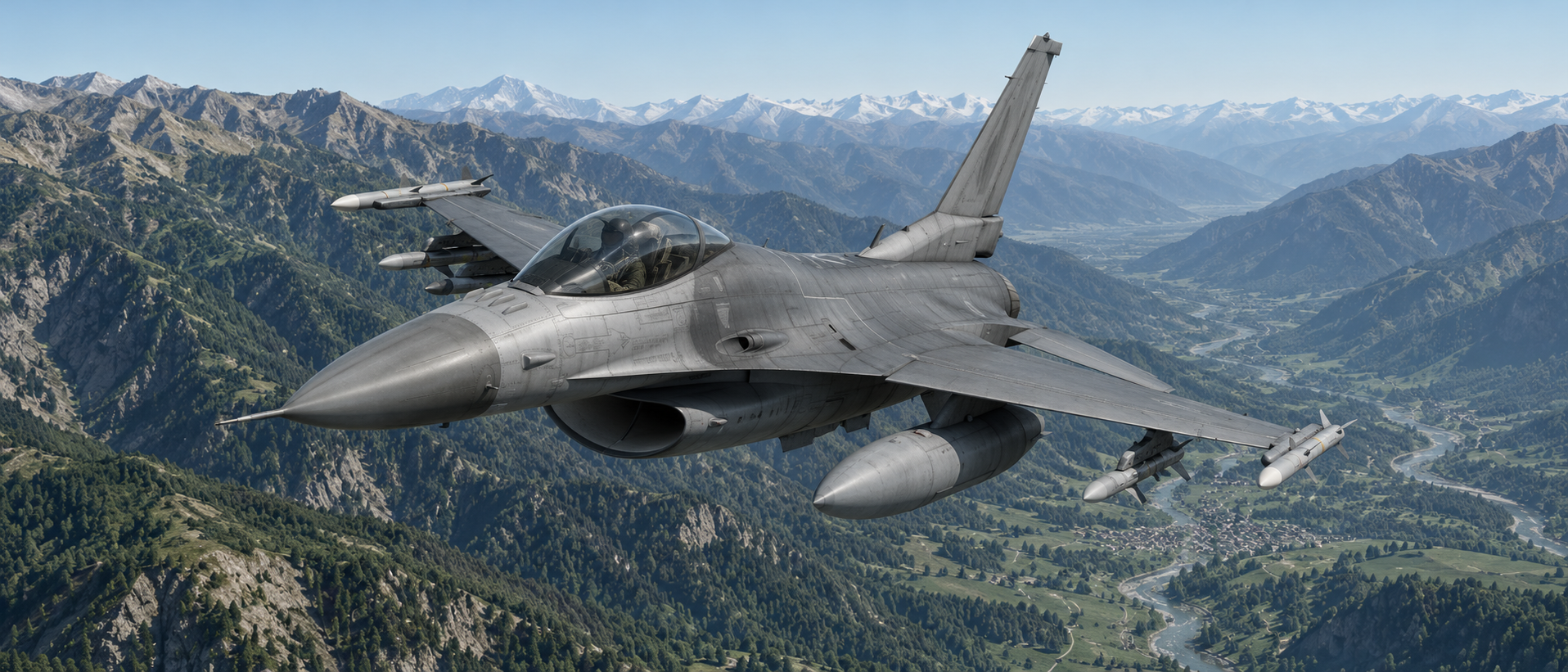
You may know the moment: on approach, you search for an instrument and wish it were right in front of you. An F-16 home cockpit often starts with that wish. You can begin without a complete console. Even an extra screen behind a homemade faceplate changes how you experience the Viper.
The Cockpit Suite Live Hub DCS module supports this journey. It connects the DCS World F-16C Viper to external instruments, additional display PCs and supported hardware. The basic F-16C implementation is in place, including instrument rendering and the ADI. Your setup can start small and grow with your ideas.
Exporting DCS instruments: Building the F-16C in front of you
The Center Console, analogue instruments, both MFDs, DED/PFL, radar warning receiver, Caution Panel and Control Panels form the foundation of your F-16 home cockpit. Detach and position displays to suit your build, either as a complete panel or as individual instruments.
Start with the complete Center Console on a small screen. Later, each instrument can have its own cutout in the F-16 panel. Adjust size, position, rotation and frame to the available space. Saved window layouts help you return to your familiar cockpit at the next start.
The ADI is included too
The attitude indicator brings a cockpit to life. In the DCS module, the ADI follows the F-16C flight attitude, including course and glideslope guidance, turn and slip indications and the associated warning flags supplied by DCS. These cues appear on your own instrument panel.
Use the ADI individually or within the complete Center Console, with the same rendering path on server and client. If valid source data is lost, the instrument indicates the loss instead of inventing flight attitude or apparently valid ILS guidance.
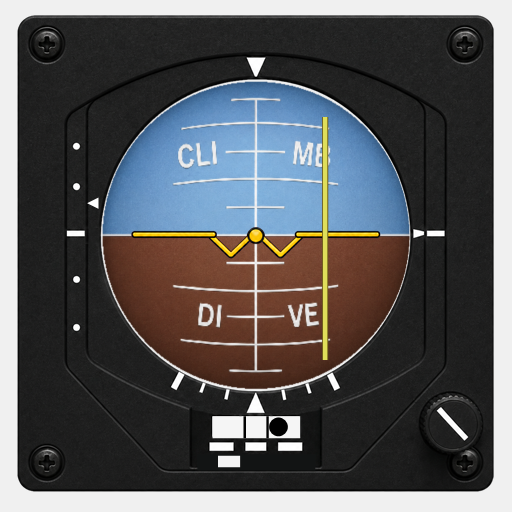
Flight attitude in front of you.
As a separate instrument or within the Center Console, the ADI brings attitude, guidance cues and warning flags to your display location.
The virtual monitor: Room for DCS image exports
MFD, RWR and EHSI contain information from the native DCS displays. The DCS Exporter brings their setup together. Each image source receives its own position and size on the virtual screen.
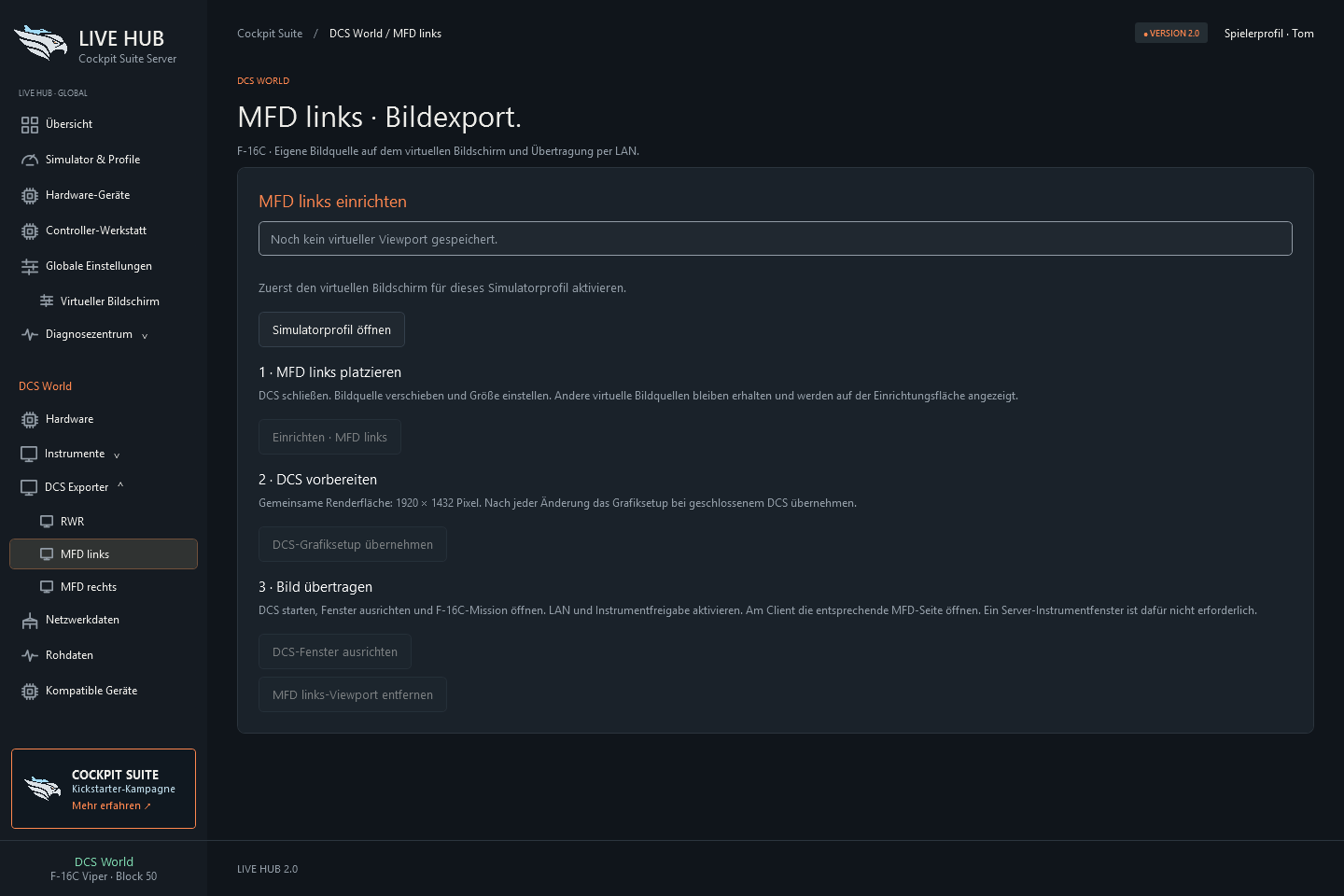
The virtual monitor is an additional Windows display surface. DCS renders the configured instrument images there; Live Hub captures their regions and supplies shared clients. This creates network image sources without permanently using a real second monitor as an export surface. No additional physical screen is required for the virtual surface.
Telemetry, text and native image sources
RWR and EHSI
Instruments and panels at your setup
The configuration belongs to your DCS profile. Save or remove each image source individually while retaining the others. To change DCS viewports, close DCS, apply the graphics setup and restart the simulation. You can then hide the setup surface. The image source remains available even with no corresponding server instrument window open.
Which DCS data is transmitted, and how you can use it
A cockpit combines an MFD image, a number on an OLED and a panel indicator light. Live Hub handles each type for its purpose. You decide which displays and data your setup receives.
| F-16C source | Transmission | Use in your cockpit |
|---|---|---|
| Left/right MFD, RWR, EHSI | Native DCS instrument images | Screens behind faceplates, separate client windows; EHSI also inside the Center Console |
| DED and PFL | Display lines with text and inversion | External displays, supported physical DED and custom controller displays |
| Flight attitude, speed, altitude and other measurements | Numerical telemetry and mapped cockpit values | ADI, altimeter, analogue instruments and custom-formatted controller outputs |
| Engine, fuel and system indications | Measurements supplied by the DCS adapter | Needle instruments, mini OLEDs and custom data chains |
| Caution and other indicator lights | Assignable lamp states | Caution Panel, live data view and supported LED board configuration |
The Center Console combines both paths: telemetry instruments are rendered from measurements, while the EHSI receives its native DCS image. DED/PFL use actual text data, including display lines and inverted fields. Custom controllers can receive all five lines or a compact dataset with text and inversions.
All raw values of the DCS module are available alongside the finished displays. Use them for your own instruments, displays and controller data chains. The raw data view helps identify measurements, named text fields and indicator lights. A cockpit needle position and a value converted into physical units are different sources: select the one that matches your instrument scale.
Displaying DCS MFDs and instruments on a second PC
The simulation stays on the DCS PC. Additional computers running Live Hub Client can host displays. The server sends shared instrument data, text and images over your local network, allowing you to distribute cockpit screens without connecting them all directly to the simulator PC.
Native image sources have a selectable target rate of 30 or 60 frames per second in the DCS profile. Actual performance depends on the source, computer and connection. Arrange client windows independently of the export surface: the source stays configured as you find the right display position.
From the screen to your own F-16 panel
A small switch panel or button box can be your next step. Live Hub shows supported input boards, their states and the saved DCS F-16C bindings. You can see which physical input maps to which cockpit function. Bindings remain part of your DCS configuration.
F-16C data provides simulation feedback: measurements for custom instruments, DED text for suitable displays and lamp states for indicator configuration. In the Controller Workshop, assemble adapter values into data chains and define their format, for example to send engine or fuel values to a microcontroller. Physical outputs depend on the controller, firmware and assignment.
Control Panels also help during a staged build. Operate supported switches and buttons through shared screen panels. Commands return to the simulation through the DCS adapter while your next physical panel takes shape on the workbench.
Your Viper gains something with every instrument that finds its own place.
The F-16C is in place. The cockpit keeps growing.
The basic F-16C integration is implemented: instruments including ADI, native image exports, DED/PFL, networking and use of the supplied data are part of the DCS module. We continue building on this foundation. More options, hardware and DCS aircraft are planned. Other types are prepared; the current focus remains the F-16C Viper.
You can begin before a full cockpit is finished. Start with two MFDs beside the monitor, a small ADI screen or the first fuel value on your homemade display. Every step brings part of the Viper from the simulation to your desk.
One day, you sit at your setup, start DCS and watch the instruments come alive in front of you. The idea on your desk has become your own cockpit.