
This guide covers the DCS F-16C Viper. Other DCS aircraft are not automatically supported. Start with telemetry and one instrument, then configure native image exports separately.
Update 2.0.33: DCS EHSI
The F-16C EHSI bezel now shows the native square image area down to the chamfered lower corners. New EHSI image sources default to 320 × 320 pixels; previously saved sizes remain unchanged.
Download and extract the ZIP, then import its ARC as an adapter under Simulator & Profiles in Live Hub Server. The server package includes the matching 2.0.33 client module for another display PC. Existing profiles and DCS export settings are retained. Align and check the display in an actual F-16C mission.
Requirements
You need DCS World with F-16C, Live Hub for Windows x64 and the DCS module. A client is only needed for another display PC. Close DCS before changing export files or image export configuration.
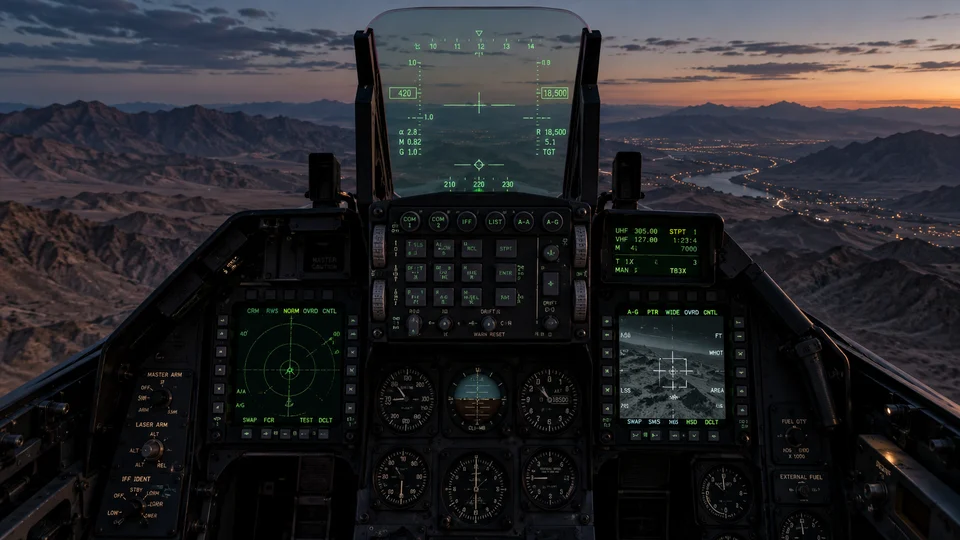
Step-by-step setup
- Extract the DCS ZIP and import its ARC under Simulator & Profiles. Select a DCS F-16C profile/model.
- Use the module's export setup for the correct Saved Games folder. Preserve existing export extensions and check the backup. Restart DCS afterwards.
- Load an F-16C cockpit mission and check fresh raw data. A connection badge or preview is not a substitute.
- Detach a telemetry instrument and compare it with the cockpit. DED/PFL use text data; MFD, RWR and EHSI each need their configured native image source.
- Choose the required source under DCS Exporter. Use local setup for an existing local display; the virtual monitor is a separate export path requiring explicit configuration.
- After image export changes, apply the intended DCS graphics setup, restart DCS and align the display. For another PC, configure LAN and instrument permissions. Target rates do not guarantee simulator FPS.
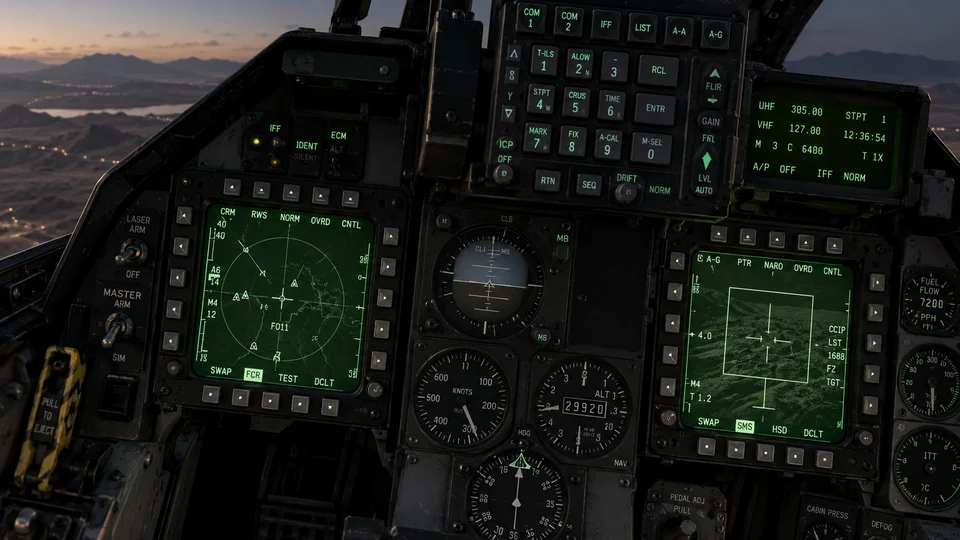
Troubleshooting
- No telemetry: check the F-16C session, Saved Games folder and installed Lua export.
- Telemetry works but MFD is black: check image export configuration, permitted cockpit/sensor exports and the active mission. Do not remove unrelated Export.lua entries.
- No image on client: check the server source first, then client module and permissions. A configured network image source does not require an always-open server instrument window.
The native cockpit remains the reference. Detailed instrument states and special export setups require comparison in a real mission. This guide does not certify every third-party DCS extension.