

Imagine your first flight with your own panel. You reach for the landing gear switch. The F-16 in Falcon BMS responds, and your connected gear indicator shows the new state. Beside the main screen, the MFDs display their pages and your DED shows data from the simulation. The parts you built and configured are working together.
For a cockpit builder, that moment means more than a successful test. It holds evenings spent wiring, measuring cutouts, finding the right display and enjoying another step that works. Once you start building an F-16 home cockpit, ideas for the next panel soon follow. The international community also calls a simulator cockpit a “simpit”.
Building an F-16 cockpit for Falcon BMS means connecting the simulation, displays and controls. Cockpit Suite Live Hub brings them together. The BMS module supplies simulator data for instrument displays and supported hardware. Profiles, devices and additional display PCs are managed together. You can start small: two MFDs beside your monitor can already make a difference.
Building an F-16 cockpit: You can start without a full cockpit
Real switches at your fingertips, essential instruments in front of you and a small radio display: an F-16 desktop cockpit can fit on your desk. Our concept shows a compact panel with toggle and rotary switches for F-16 functions, airspeed/Mach, altitude, fuel and RPM.
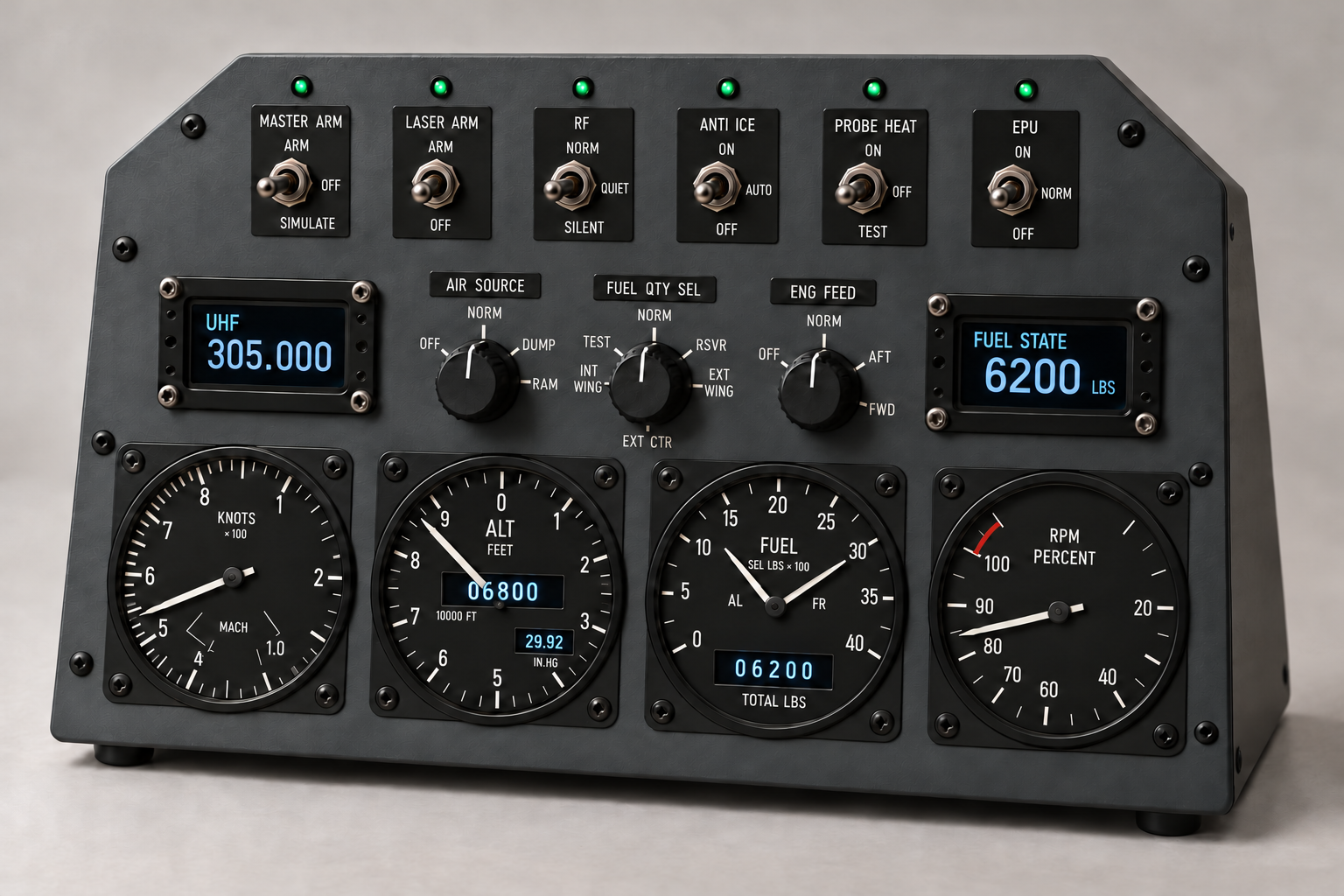
The two larger OLEDs show UHF and Fuel State. Mini OLEDs provide the altitude, pressure and total fuel readouts inside the round instruments, combining digital cockpit displays with familiar analogue needles.
A compact DIY setup can also suit a smaller budget. Start with a simple faceplate, suitable switches and small displays; add instruments as your resources allow. You do not need a dedicated cockpit room or a complete F-16 console immediately. The concept explores bringing more cockpit feel to your desk with manageable effort.
Exporting BMS instruments: A place for every display
Look at your instrument panel and the important displays are where you expect them. The BMS module offers the Center Console, twelve analogue displays, both MFDs, DED and PFL, the radar warning receiver, Caution Panel and UHF/VHF radio displays.
You can export BMS instruments individually, detach them, move, rotate and resize them. A small screen becomes an instrument carrier behind your own F-16 faceplate. Frameless displays fit into the cutouts. Their arrangement is saved so your next flight starts with your familiar setup.
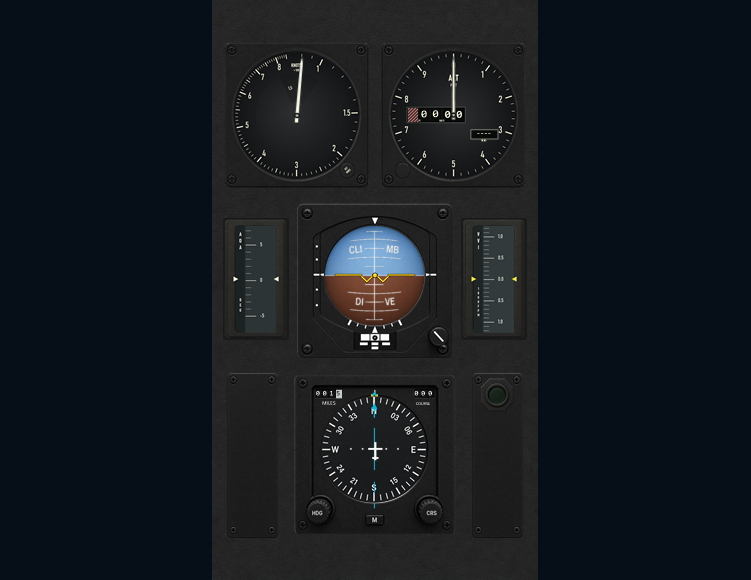
A panel. Or individual instruments.
Use the Center Console as a complete unit, or export, display and position each instrument independently. Size and arrangement follow your setup.
The Center Console works as a whole or as separate instruments. Falcon BMS MFD export puts the multifunction displays on another screen. Their images come directly from the configured BMS image export: when you select a different page in the F-16, the external display follows. An extra monitor becomes part of your cockpit.
Displaying MFDs, DED and instruments on additional PCs
Eventually, the first two displays may not be enough. You want the DED higher up, the Center Console below the main screen and another monitor behind the right panel. Additional computers can host these displays.
Live Hub Server runs on the Falcon PC. A Live Hub Client on another computer receives shared instrument data and MFD images over your local network. You can display BMS instruments, MFDs and DED on a second PC via LAN and distribute display locations without connecting every screen to the simulator PC.
BMS module and data sharing
and MFD images
Position instruments freely
On the server, you decide which displays each client receives. Shares belong to the simulator profile. Server display updates, network transmission and client rendering can also be configured separately to suit your setup.
Operating the F-16 as your cockpit grows
There are many building stages between your first display and a fully wired cockpit. Control Panels can help along the way. Detached, shared panels show states and let you operate supported switches and buttons, including landing gear, test functions and Emergency Jettison.
The client sends commands to the Falcon PC, where the active BMS keyfile executes them. This requires permission, fresh simulator data and an active 3D cockpit. You can operate parts of the F-16 through screen panels while your next physical console takes shape on the workbench.
Cockpit hardware for Falcon BMS: Your first real switch
A button, some wire and a cockpit input board can start your DIY button box. Assign the inputs to the desired Falcon BMS functions. When your switch operates the F-16, your work gains an immediate purpose. That success often inspires the next cockpit project.
Live Hub shows supported devices and their connection status so you can follow what happens during setup. The BMS integration can read existing keyfile mappings for supported input boards, helping you match a physical input to an F-16 function and troubleshoot it.
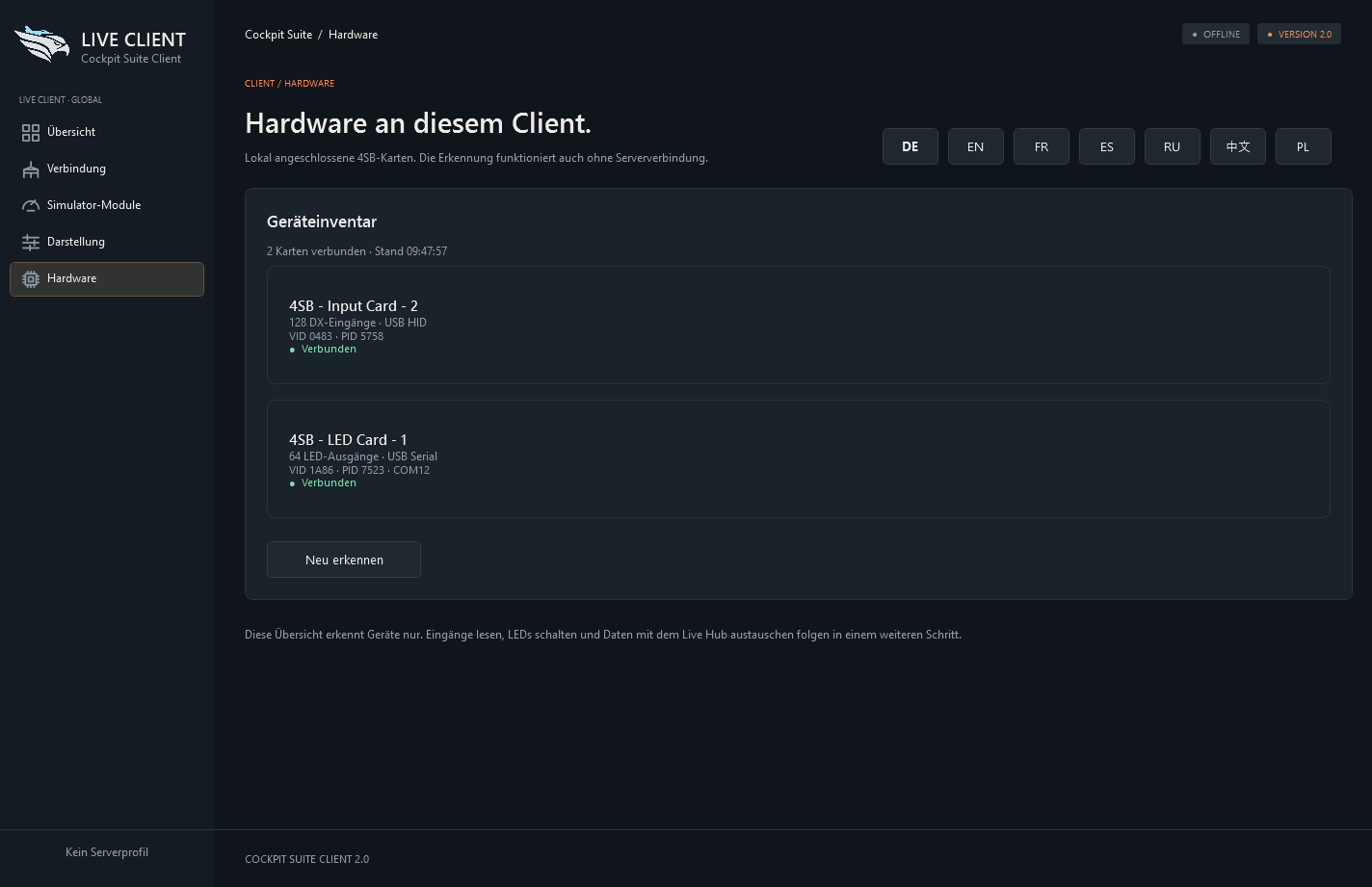
Suitable LED controllers and a supported physical DED unit bring simulation feedback into your panel. Available outputs depend on hardware, firmware and configuration. Searchable raw data, state bits and DED/PFL lines help diagnose a display that is not yet behaving as expected.
Audio and bass shakers: Hear and feel your cockpit
Once displays and switches are in place, sounds and vibrations add another layer of feedback. The BMS module has an audio and bass shaker section. Effects, audio profiles and output devices can be assigned to the simulator profile.
With suitable tactile transducers, configured effects can be felt in your seat or cockpit structure. Experiment with the feedback and intensity that suit your setup. Matching effects to your hardware adds another personal part of the flight experience.
The special moment comes when something you built responds to the F-16 for the first time.
Sending BMS data to your own controllers
Cockpit builders have different needs. One wants engine values on a custom display; another wants landing gear states on a microcontroller. The Controller Workshop lets you select BMS data, define its output format and assemble the required values into a data chain for your cockpit electronics.
Data chains can transmit every value provided by the simulator adapter. You choose what your controller receives: instrument values, switch states, indicator lights or display text. The engine and landing gear values shown are only an example. Templates and previews help you assemble and understand your output.
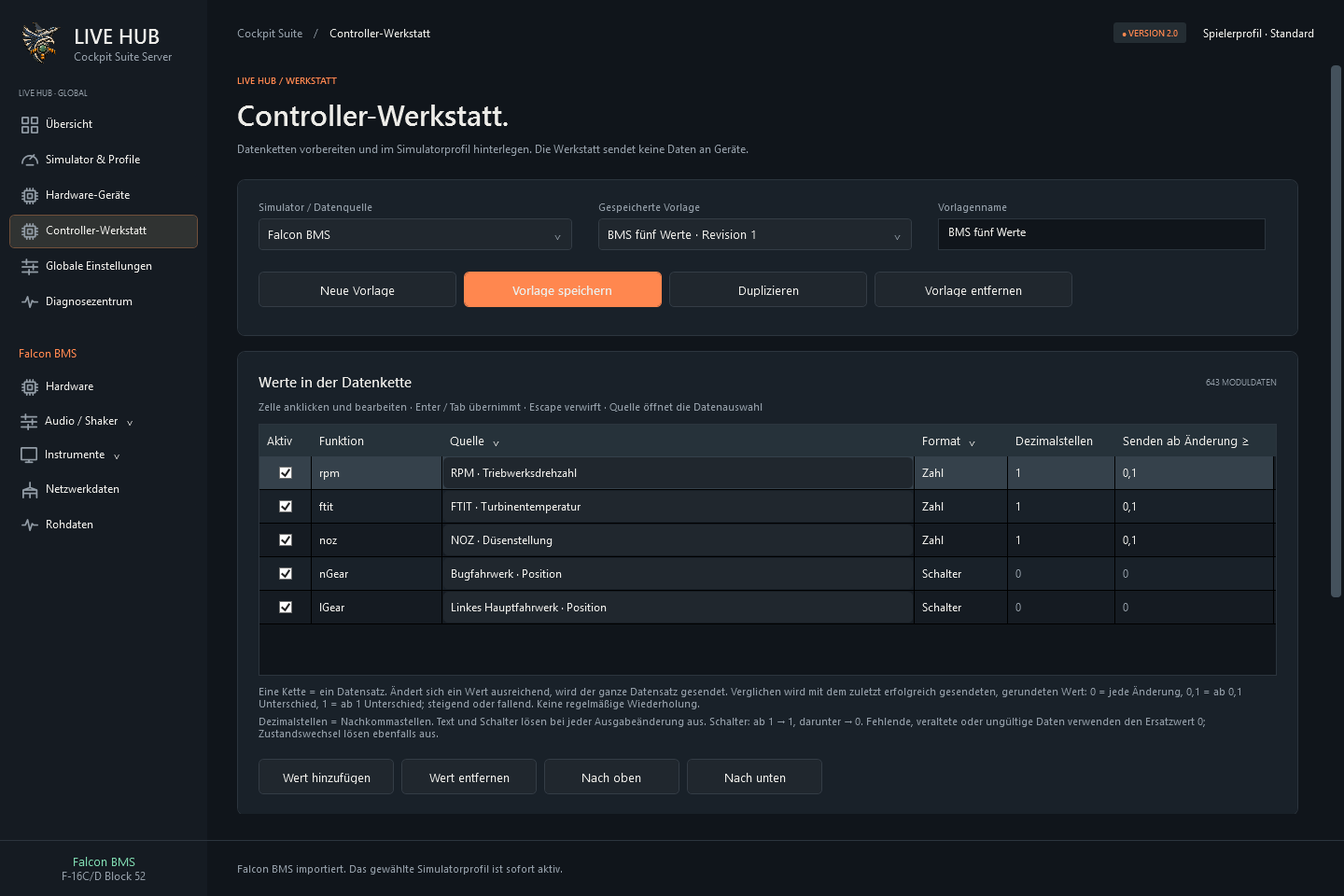
The separate Controller Simulator lets you examine data chains and transmitted values without connecting real controller hardware, leaving room to experiment before the next step in your build.
Your F-16 does not have to be built in a weekend
Your project might begin with a used screen or your first switches. Or you already have a cockpit and want to distribute its displays better. Cockpit Suite Live Hub supports these different starting points: external instruments, additional display PCs and supported hardware.
Let your cockpit grow with your time, ideas and resources. A well-fitting cutout, a neatly wired panel or an instrument in the right place changes your personal flight station one step at a time.
One day, you sit at your setup, start Falcon BMS and reach for the switch you installed yourself. The F-16 responds on screen. Your display responds in front of you. That is when the work feels worthwhile.