

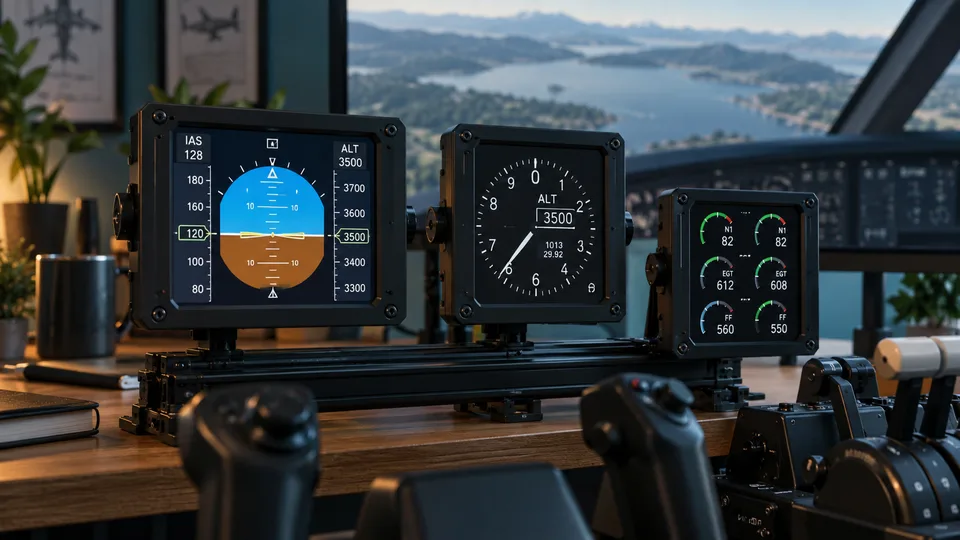
Arrange your displays
Detach, move, resize and rotate instrument windows. On your simulator PC or on additional cockpit PCs using the client.
 COCKPIT SUITELIVE HUB /
THE CONNECTION TO YOUR COCKPIT
One control centre for simulator data, instruments and your setup. Made for people who build their own cockpit.
ONE APPLICATION. YOUR ENTIRE SETUP.
Live Hub processes your simulator’s data and brings it to your instrument displays. Manage profiles and devices in one place and distribute shared displays over your local network. The right adapter provides the functions for your simulator.
FeaturesYOUR SETUP. YOUR RULES.
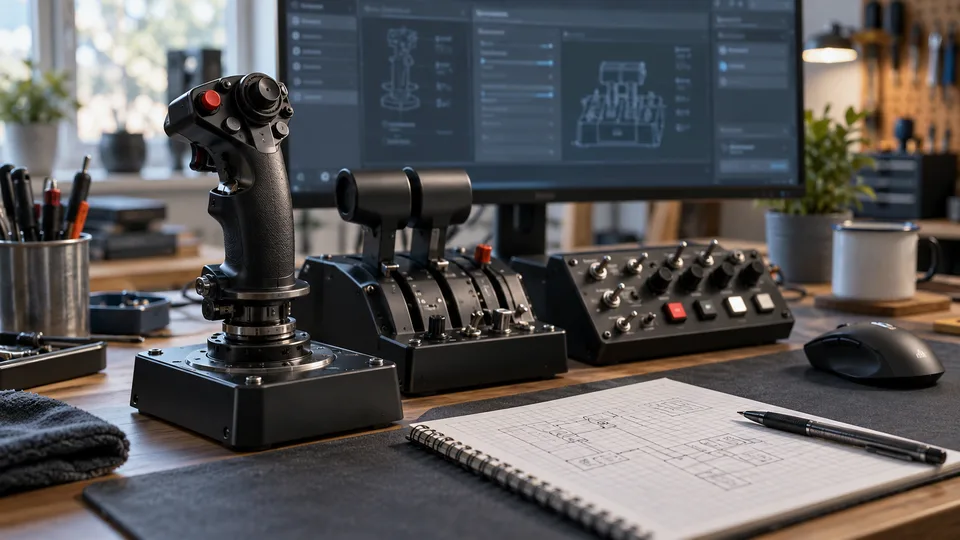
Instruments where you need them – on your simulator PC or on additional displays across your network. Arrange windows to fit your cockpit and manage profiles, devices and data sharing centrally in Live Hub.
Detach, move, resize and rotate instrument windows. On your simulator PC or on additional cockpit PCs using the client.
Settings and instrument windows stay assigned to their simulator profile. The server manages devices and data sharing.
Searchable adapter data, detected hardware and connection status help you set up and troubleshoot your cockpit.
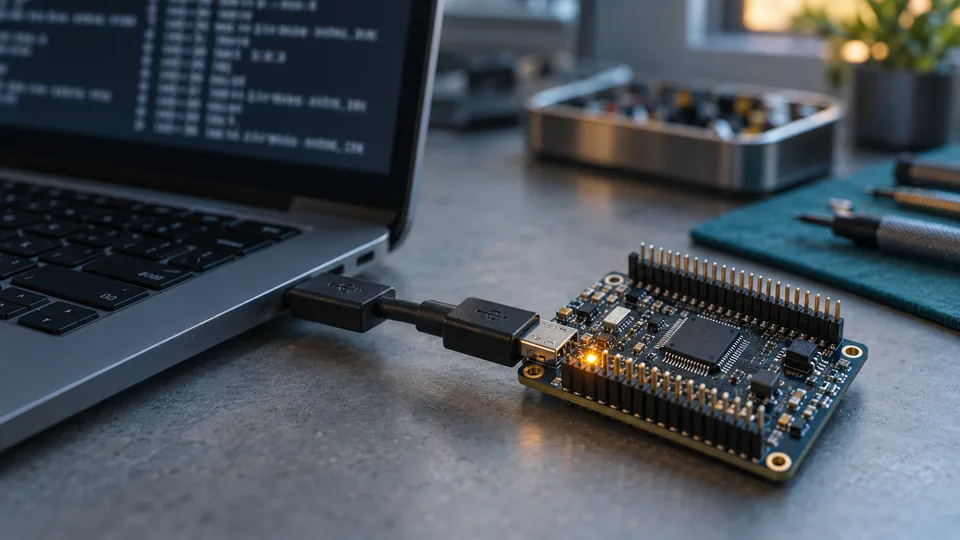
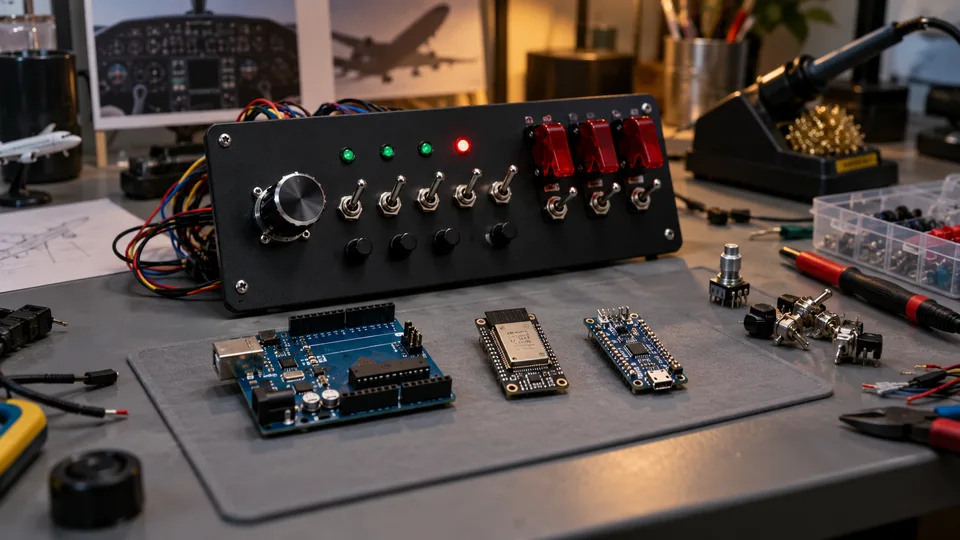
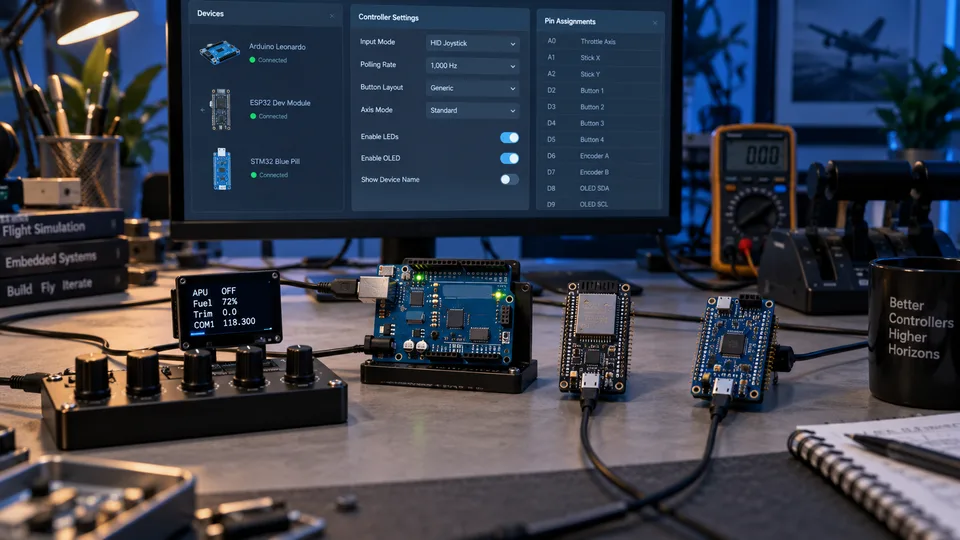
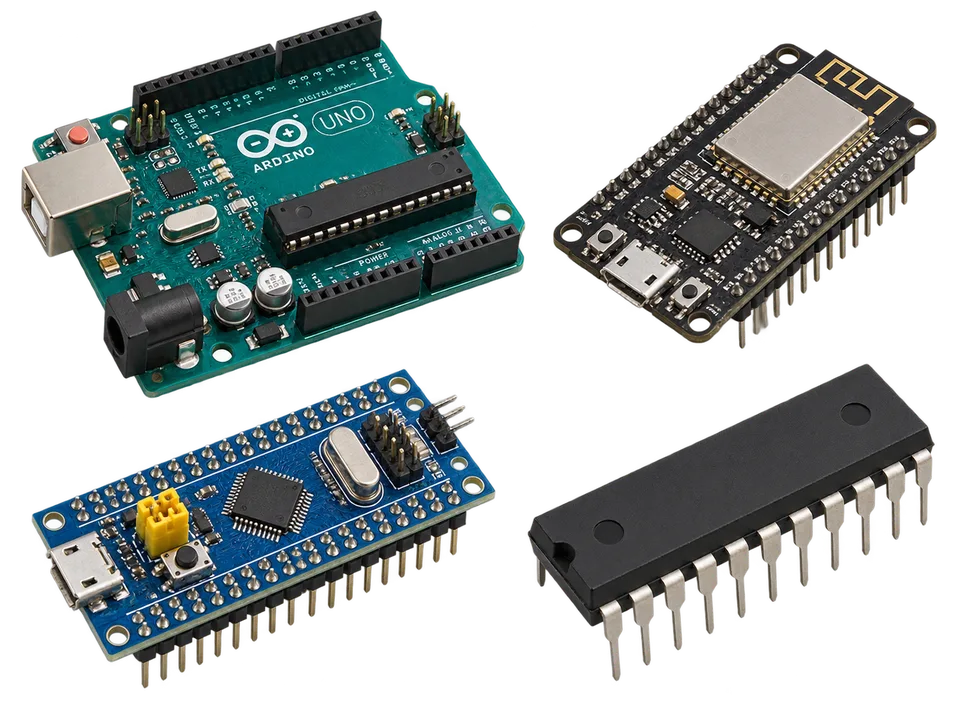
Build your own switches, controls and displays with Arduino, ESP32, STM32 or ATmega. The board, firmware and interface determine how your controller can connect.
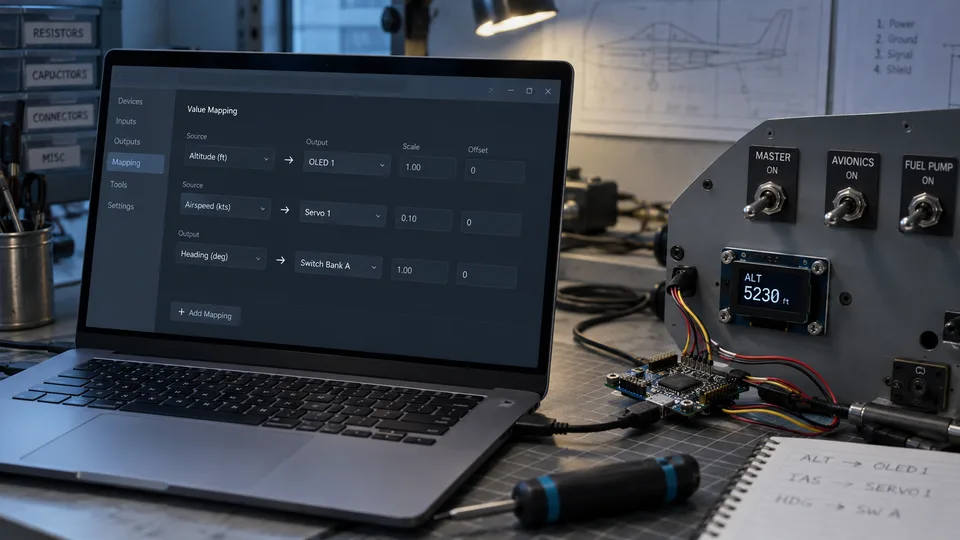
Assign simulator values to the appropriate output: an LED, a display or your own instrument. Data chains define processing and output format.
Assign controllers, configure data chains and check outputs with the Controller Simulator in the Live Hub environment.
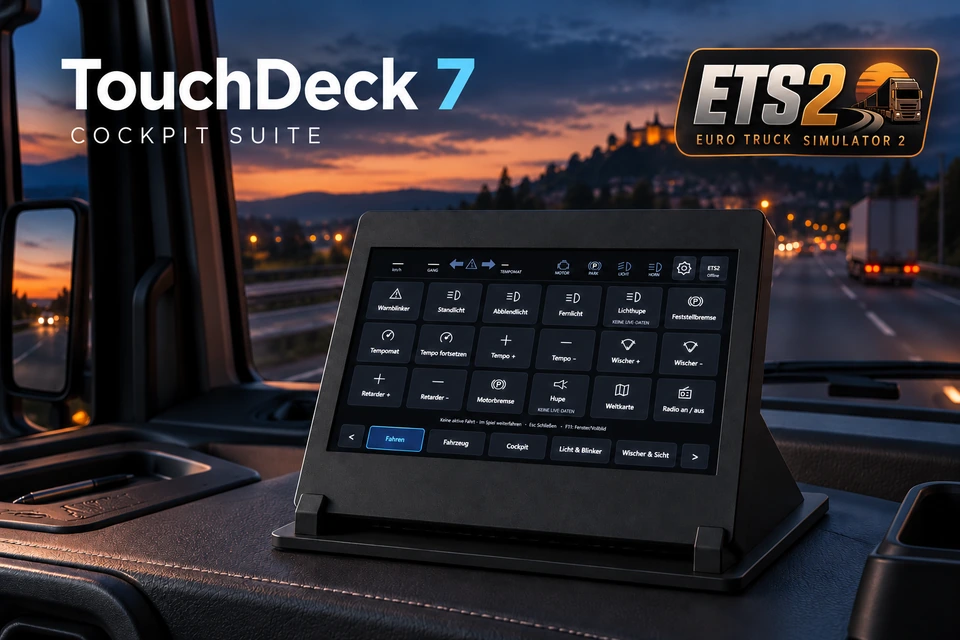
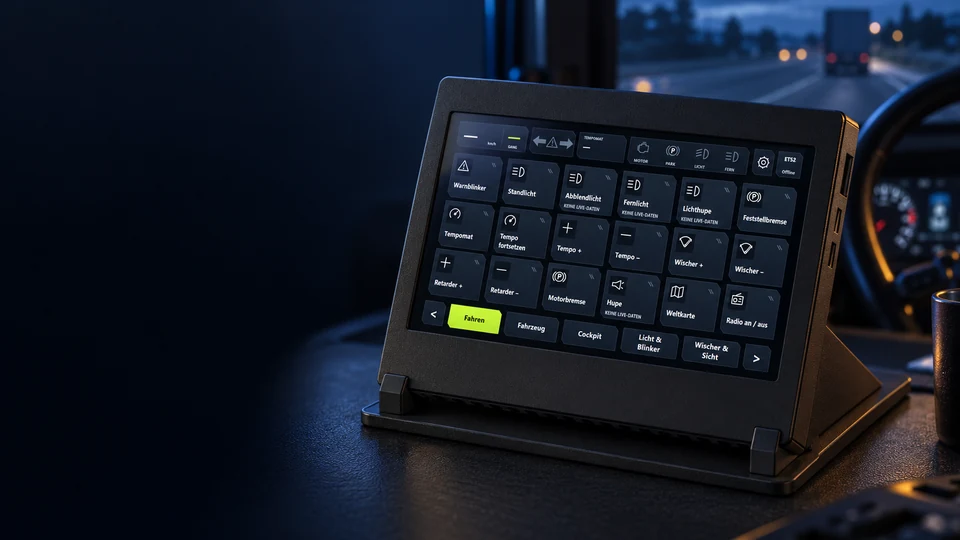
Control lights, cruise control and other truck functions on a dedicated 7-inch touchscreen – spend less time searching for keys and keep your ETS2 and ATS cockpit organised. TouchDeck 7 is in development; the add-on will be paid.
For registered members: Arduino guides and examples in dedicated sections for each simulator. Missing an example or tutorial? Ask in the forum – we reply quickly and help you move forward.
Join our Facebook group and Discord channel. Show your cockpit, share ideas and stay up to date with Cockpit Suite.
THE DATA FLOW
From the appropriate simulator adapter through your server to shared instruments and clients.
SCHEMATIC ILLUSTRATION
CONNECT TO YOUR SIMULATOR
BMS and DCS F-16C are available as final modules with hardware support. War Thunder, ETS2 and ATS are beta modules with hardware support. LS25 remains in development, awaiting approval from the manufacturer.

Falcon BMS: instruments, raw data and local hardware connectivity. The ARC package includes the server module and matching client display module for Live Hub 2.0.1.
View module and setup
DCS F-16C: instruments, real-time raw data, input and LED boards, and physical DED output. The ARC package includes server and client modules. Other DCS aircraft are not yet fully implemented.
View module and setup
War Thunder: live raw data, recordings and analysis, with support for compatible 4SB input and LED cards. Available as a beta; functionality depends on the vehicle.
View module and setupETS2: live telemetry, raw data, recordings and support for compatible input and LED cards. Available as a beta.
View module and setupATS: live telemetry, raw data, recordings and support for compatible input and LED cards. Available as a beta.
View module and setup
A new Cockpit Suite module for Farming Simulator 25 is in development.
View module and setupCOCKPIT BUILDING / SOFTWARE & SETUP
Find the right starting point: connect Falcon BMS, set up DCS F-16C or choose MFD displays for your setup. Learn which module you need, how to connect the server and client, and which options are available for instruments, displays and cockpit hardware. These guides walk you through the setup and help you choose the right display solution for your simulator and your own cockpit.
Connect instruments, MFD, DED/PFL and cockpit hardware using the Falcon BMS adapter for Cockpit Suite Live Hub —.
Read the guide →DCS F-16C instruments, raw data, inputs, LED outputs and DED with the DCS adapter for Cockpit Suite Live Hub —.
Read the guide →Free standalone Falcon BMS MFD Viewers and Live Hub MFD displays: differences and choosing a setup for your cockpit.
Read the guide →Live Hub is being developed as a platform across simulators. Beyond aircraft, it is intended to connect cockpits and controls for tanks, trucks, racing cars, agricultural machinery and other vehicles. Further simulators and models are to be added through their own adapters.
BMS and DCS F-16C are available as final modules with hardware support. War Thunder, ETS2 and ATS are beta modules with hardware support. LS25 remains in development, awaiting approval from the manufacturer.
Adapter guide →SOFTWARE / DOWNLOADS
Live Hub 2.0.1: Server, Client and Controller Simulator for Windows. Download the matching BMS or DCS modules and import them into the server.
Manage profiles, devices and simulator data centrally.
Bring shared instrument displays to additional PCs.
Check data chains and transmitted values without physical controller hardware.
Important when upgrading: Live Hub 1.x configurations are not compatible with 2.0. Recreate your profiles and hardware assignments.
HARDWARE / MICROCONTROLLERS
The Controller Workshop connects device assignments with data chains. Select simulator data, process and format it, and send it to your compatible controllers. The Controller Simulator helps you check the output.
The interface is available for custom firmware and DIY projects. Integration requires a supported interface and suitable receiving logic.
DATA CHAINS AND CONTROLLER SIMULATOR AVAILABLE
Explore cockpit hardwareGET STARTED WITH LIVE HUB 2.0.1
Start the server on the simulator PC and import the matching BMS or DCS ARC module. Select the simulator, model and profile. Enable the LAN server for additional display PCs.
Start Cockpit Suite Live Hub Client on the display PC. Enter the server address and port and connect. The active server profile determines the matching display module.
Approve instrument groups offered by the adapter for the client on the server. With the Falcon BMS adapter, these are under Falcon BMS → Network data.
Building your own setup or have ideas for Live Hub? Share your questions and experience with us on Discord.
A cockpit can start with a board, a few switches and one display.
Read more →This overview separates simulator module, instruments, inputs and physical outputs.
Read more →A small BMS panel combines a configured compatible input card with a supported LED card.
Read more →