

Start with one detached instrument. Once it shows data from your flight, add more displays, a client PC and compatible controllers. A full F-16 cockpit is not required.
Requirements
You need Falcon BMS on the simulator PC, Live Hub for Windows x64 and the Falcon BMS module. Current installation detection targets BMS 4.38; this is not a blanket promise for older versions. A second monitor on the same PC does not need Live Hub Client.
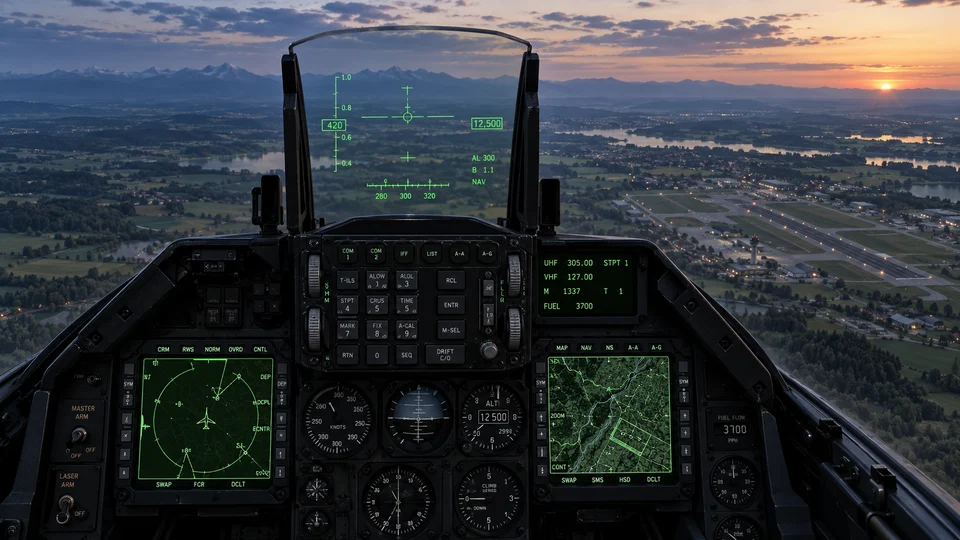
Step-by-step setup
- Install Live Hub. Download and extract the BMS ZIP, then import the enclosed ARC under Simulator & Profiles. Do not extract the ARC again.
- Select a Falcon BMS profile and the appropriate model. Check the detected installation folder and correct it in the active profile if needed.
- Start BMS and enter a cockpit flight. Check connection status and fresh raw data in Live Hub first. The BMS menu alone does not prove flight data is available.
- Open an instrument page and detach the desired display. Embedded previews are not live instruments. Drag the detached display into place and resize it.
- Compare an obvious value, such as altitude, with the BMS cockpit. MFD images additionally require a working BMS image export/RTT source; ordinary telemetry does not replace it.
- For another PC, configure the LAN server, connect Live Hub Client and grant the required instrument group under Falcon BMS → Network data. The BMS ARC includes the matching client module.
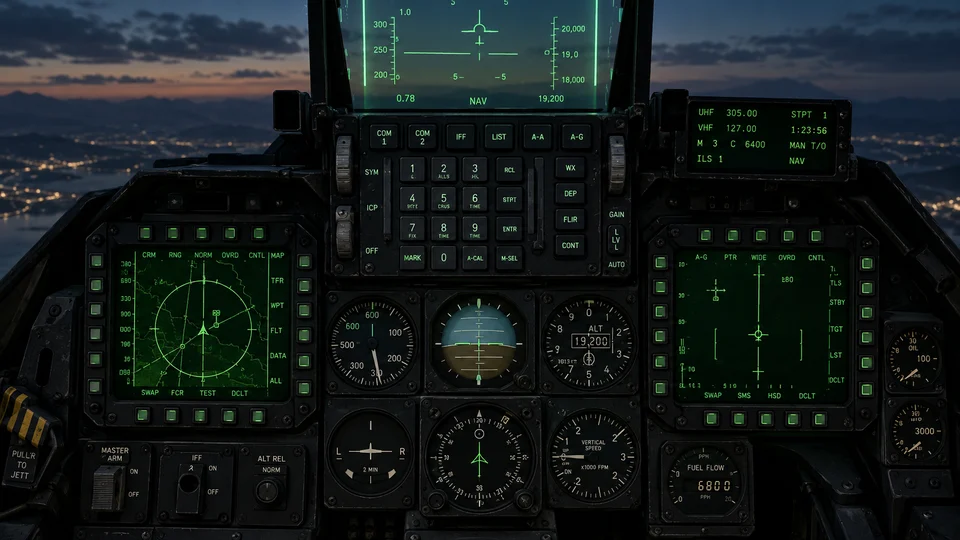
One panel, two data paths
Inputs control the simulator; LEDs show a state read from BMS. Assign them separately. Start with a supported, configured input or LED card. Custom Arduino firmware also needs the appropriate protocol.
Troubleshooting
- No values: check active profile, BMS folder, cockpit session and data status before changing hardware assignments.
- Neutral instrument: check that it is detached. For missing MFD images, check image export separately from Shared Memory.
- Connected client without displays: check permissions and client module. An additional monitor and a network client are different setups.
- Input does not work: check the active BMS keyfile and device binding. USB detection does not prove the correct simulator action.