
This example shows how a small budget can get you started with a working cockpit panel: a simple wooden front, physical controls and suitable electronics with a simulator connection. Begin with the functions you actually want to use and expand gradually.
The pictures illustrate one possible homemade F-16 panel. Choose your own shape, layout and equipment; size the openings to the actual components you use.
From raw MDF to a finished panel in 8 steps
A DIY switch panel takes shape through simple tasks. Plan and cut first, then paint and fit the components. It is a manageable way to begin building your own cockpit.
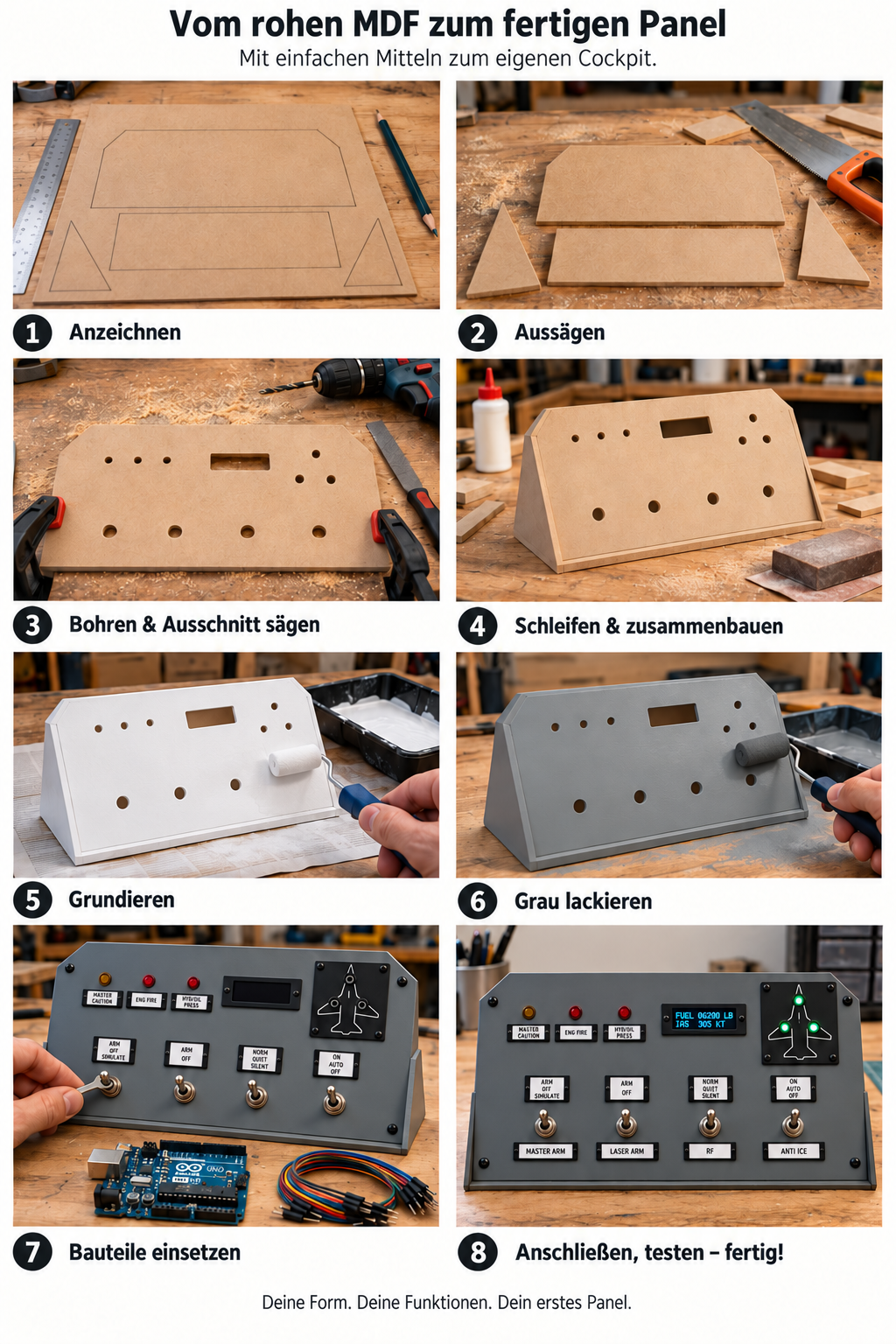
Mark it out
Arrange switches, LEDs and the display on paper or cardboard first. Transfer your chosen shape to MDF and leave room behind the front for components and wires.
Cut the pieces
Cut out the front, base and two triangular sides that support the angled console. Offcuts and basic tools are enough for the wooden structure.
Drill and cut the opening
Match the holes to your switches' threaded bushings and LED holders. Fit the display opening to your module and check everything before painting.
Sand and assemble
Smooth the cut edges and surfaces. Join the front, base and sides, for example with small wooden strips inside. The front extends right down to the base.
Apply primer
Remove sanding dust and prime the surfaces and absorbent MDF edges. Follow the product's drying times and application temperatures.
Paint it gray
Apply thin coats using a suitable small roller. Mouse gray is RAL 7005, or choose your own color. Allow the finish to cure sufficiently before fitting parts.
Fit the components
Install toggle switches, small LEDs and the optional OLED. Thin printed frames hold replaceable labels. Switch type and positions must suit the selected function.
Connect, test – done!
Wire the parts to suitable electronics with power disconnected. Configure the firmware and simulator connection, then test each function separately. Add more when you are ready.
What you need for your first switch panel
- MDF offcuts for the front, base and sides, plus small wooden mounting strips.
- Suitable toggle switches, small 5 mm LEDs with appropriate circuitry and wire.
- An Arduino UNO R3, USB cable, and firmware and PC software suited to your functions.
- Sandpaper, MDF-compatible primer, paint and a suitable small roller.
- Optional: a supported OLED module and thin 3D-printed bezels or label holders.
Small details make it your panel
Fine plastic frames hold labels that can be changed without peeling adhesive off the paint. A small aircraft silhouette with three green LEDs can hold the separate landing-gear indicators. An OLED provides room for selected simulator data.
Turn your wooden panel into a working console
This example connects four toggle switches, six LEDs and an OLED to an Arduino Uno R3. Here are the matching wiring diagram, complete sketch and connection to Falcon BMS. Start small and expand your panel later.
- 4 toggle switches
- 6 individual LEDs
- 1 OLED · Fuel State + IAS
How to connect the panel
Follow the coloured wires and the printed pin names. Each switch connects to its inputs and GND; each LED needs its own 1 kΩ series resistor. The four-pin OLED uses GND, VCC, SCL and SDA.
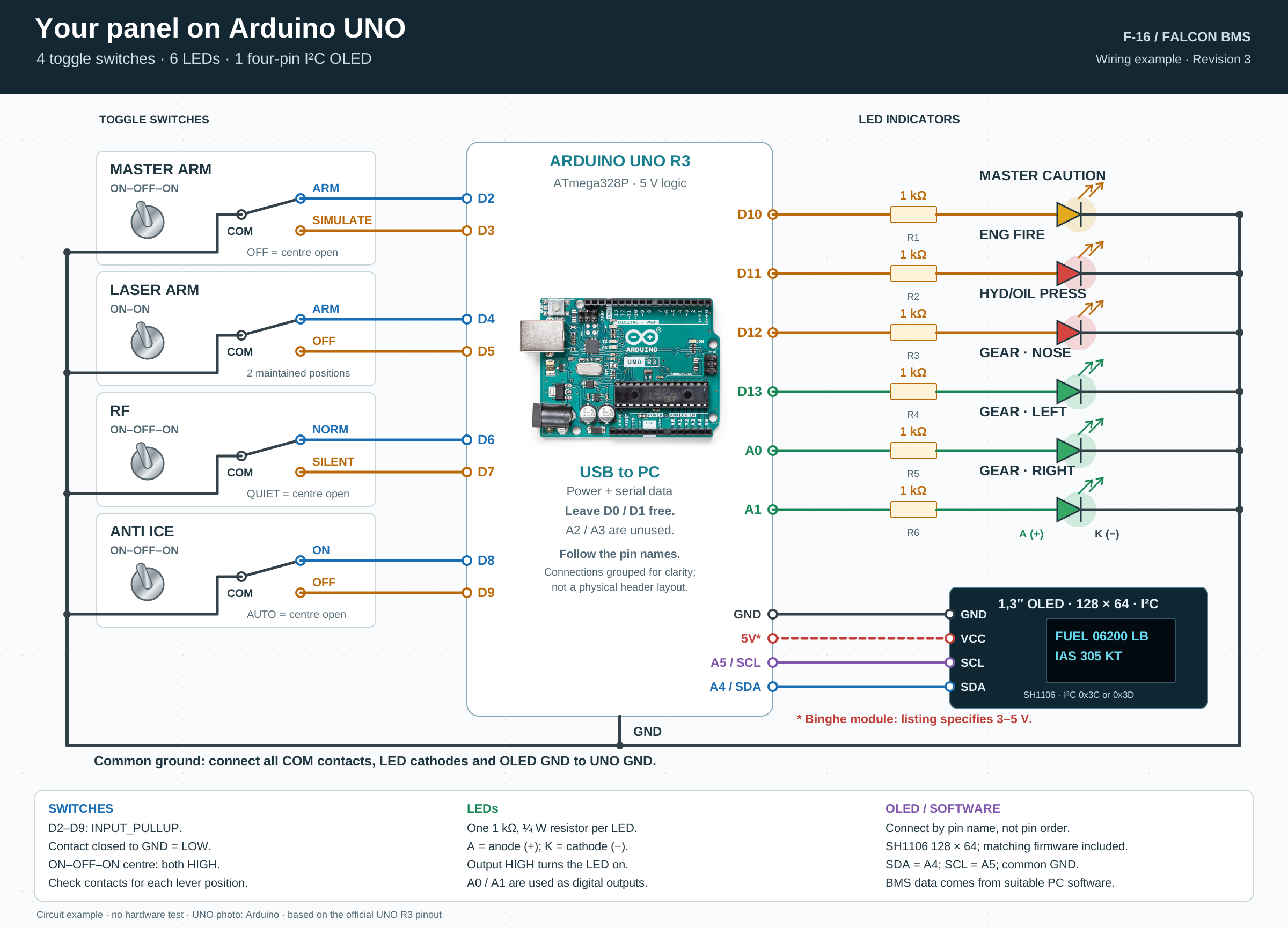
For Uno R3 / ATmega328P and SH1106, 128 × 64 pixels. The pictured Binghe module is rated for 3–5 V according to its listing. On the Uno: SDA to A4, SCL to A5.
ARDUINO UNO R3 · SH1106
The Arduino code is ready for you
You do not have to write the sketch yourself. The Arduino package contains the ready-made sketch, wiring diagram, data chain and a short getting-started guide.
ZIP · Version 2 · Quick start in seven languages
Install the library
Select Arduino Uno in the Arduino IDE and install U8g2 by Oliver Kraus using Library Manager.
Open and upload the sketch
Extract the ZIP and open UnoF16Panel.ino inside its matching folder. Keep PanelProtocol.h beside it. Select the correct COM port, verify the sketch and upload it to your Uno.
Connect the OLED and LEDs
Create the data chain shown below in Live Hub and assign it to your detected Uno. This supplies the OLED and LEDs with BMS values. The additional PC connection for the toggle switches is explained further down.
This is how the software identifies your panel: the Uno replies to WHOAMI with CS-UNO-F16-PANEL-01.
Compiled for Arduino Uno and checked with automated offline tests. Testing the complete setup with a physical panel, OLED and running BMS is still pending.
What Fuel State, IAS and landing gear show
Falcon BMS provides the values. The PC software sends a data chain over USB to the Uno. The OLED shows total fuel in lb and indicated airspeed in kt; the three green LEDs follow the nose, left main and right main landing gear separately.
- Falcon BMS
- PC software
- USB → Uno
- OLED & LEDs
Example data for illustration — not live readings
fuelstate#6200;ias#305;master_caution#0;eng_fire#0;hyd#0;gear_nose#1;gear_left#1;gear_right#1;valid#1;This example shows 6200 lb of fuel and 305 kt. All three gear LEDs are on and the three warning LEDs are off. Gear status comes from the individual gear indications, not from the landing gear handle position.
View all nine data-chain values
| Signal name | BMS raw-data source | Display / function |
|---|---|---|
fuelstate | bms.TotalFuel | Total fuel · lb |
ias | bms.Kias | Indicated airspeed · kt |
master_caution | bms.LightBits.MasterCaution | Master Caution · D10 |
eng_fire | bms.LightBits.ENG_FIRE | ENG FIRE · D11 |
hyd | bms.LightBits.HYD | HYD/OIL PRESS · D12 |
gear_nose | bms.LightBits3.NoseGearDown | Nose gear locked down · D13 |
gear_left | bms.LightBits3.LeftGearDown | Left main gear locked down · A0 |
gear_right | bms.LightBits3.RightGearDown | Right main gear locked down · A1 |
valid | bms.In3D | In3D enable · 0 switches outputs off |
Send all nine fields together, followed by a line break. Use factor 1, no decimal places for numbers, and 0 or 1 for switches. In Controller Workshop, select the sources listed here, save the template, prepare it for the BMS profile and assign it to the detected panel. The JSON file describes the template; it is not a complete profile and the workshop currently has no separate import button for it.
How BMS values reach your panel
OLED and LEDs with Live Hub
Live Hub identifies the Uno through WHOAMI and sends the nine data-chain values. The sketch displays Fuel State and IAS on the OLED and controls the warning and landing-gear LEDs.
The sketch reads the toggle switches. To control BMS, they also need a PC connection: the current Live Hub output does not yet handle these Uno switches as an input card.
Extra for toggle switches: PC connection
This separate add-on connects the four Uno toggle switches to BMS 4.38 and also handles the OLED and LEDs. It is for users who want to configure this additional step themselves. It requires Windows, Python 3.11 or later, pyserial and a BMS keyfile with suitable key combinations. Instructions and files are in the separate download.
Open only one connection per Uno port: Live Hub or the PC bridge. In bridge mode, the bridge also drives the OLED and LEDs.
What happens when data is missing
valid#0 turns off all LEDs and displays BMS OFFLINE. Live Hub sends updates when values change. The Uno therefore keeps the last received value; it may remain displayed if the connection is interrupted.
YOUR PANEL · LESS ELECTRONICS WORK
Prefer building to programming?
Our input and LED cards already handle switch detection and LED control. With the preconfigured cards, you can skip writing Arduino code and building your own control electronics. You can concentrate on your panel.
Fit the components
Mount the switches and LEDs in your own panel.
Run the cables to the board
Connect each switch or LED with a suitable cable, following the board's pinout.
Assign the functions
Assign the switch functions and LED signals in the supported software. No programming of your own is required.
Each cable contains the required conductors: usually two for an LED, or COM and the used contacts for a changeover switch. Check the specific board's pinout.
For OLED displays, add a suitable display controller. The input and LED boards handle switches and lights.
- 4SB Input Card 128 · switches & buttons
- 4SB LED Output Board 64 · warnings & status
The input and LED functions have already been tried with Falcon BMS. The hardware shop currently lists these boards as in development; see it for their status and availability.
Questions about building a budget cockpit
Do I need a 3D printer?
No. The enclosure is made from MDF. Printed bezels and label holders are optional; a friend or makerspace can produce them for you.
Do I have to copy this F-16 panel exactly?
No. Pick controls that suit your simulator and available space. The example is meant to inspire your own switch panel.
Can I use this as a button box for other simulators?
The wooden construction can be reused. Firmware, inputs and feedback must suit the chosen simulator and software.
Your first switch is a good start
Choose one function, arrange the parts on cardboard and develop your own panel. Share your build or questions with other cockpit builders.